Samsung and LG make the two best-selling smart TVs in the world, and an M3U playlist Samsung smart TV setup is the question their owners ask most. Both brands make the same promise: everything you need is already on the TV. For most apps that is true. For an M3U playlist it is almost true. Neither Samsung's Tizen nor LG's webOS can open a playlist file on its own, and neither will run the Android player apps you already know from a Firestick. What they do offer is a small shelf of IPTV players in their own stores, and one of those players plus your playlist link is the whole job.
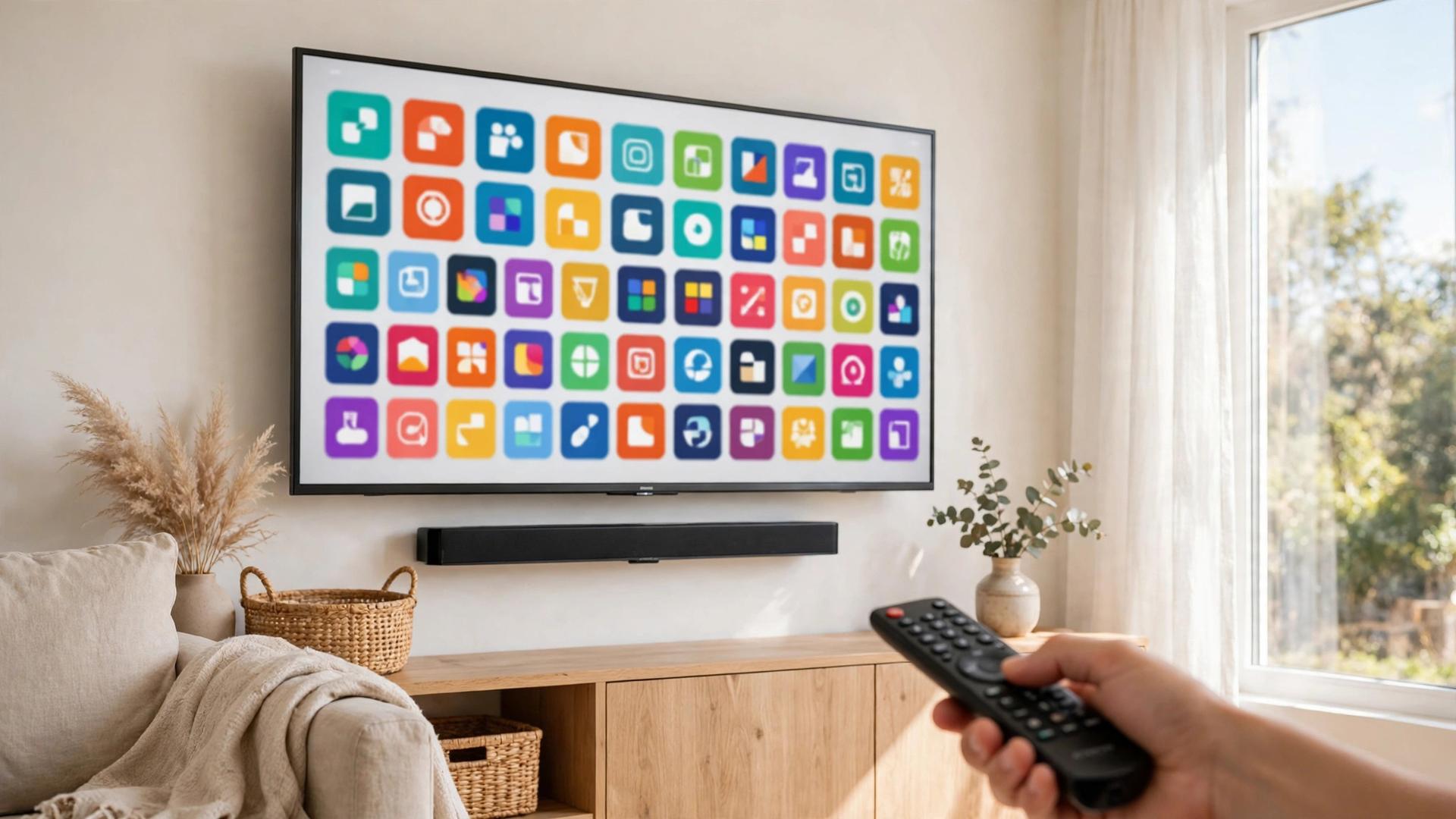
The trick is knowing which store you are shopping in. A Samsung TV from 2021 or newer runs Tizen 6.0 or later and can install IBO Player, Smart IPTV, Mi Player Pro, and a handful of others from Smart Hub. An LG TV runs webOS and has its own LG Content Store, where IBO Player and Smart IPTV appear under slightly different names depending on the region. Older sets, Samsung before 2021, LG before webOS 4, may show none of these. If your TV is older than that, a Firestick plugged into the HDMI port is the honest answer, and it costs less than a new TV.
M3U playlist Samsung smart TV setup: the two routes
Route one is the TV's own store. Press Home on the Samsung remote, open Apps, tap the search icon, and type IBO Player. Install it, open it, and write down the Device ID and Device Key it shows on screen, a string of letters and numbers you will need in a minute. Then, on your phone or laptop, open the IBO Player website, enter that ID and key, paste your M3U link into the playlist field, and save. Back on the TV, reload the app. The channel list appears without you ever typing a long address with the remote.
Route two is the QR code. Players such as Mi Player Pro show a QR code on the TV when you open them for the first time. Scan it with your phone, paste the M3U link into the page that opens, and the playlist lands on the TV by itself. It is the fastest method on a Samsung, and it removes the one step that causes most failures: typing a 60-character link with arrow keys.
For the background, see M3U Playlist Guide for Beginners 2026: Everything You Need to Start Streaming.
LG webOS: same idea, different shop
On an LG, press Home, open the LG Content Store, and search for IBO Player or Smart IPTV. The install is the same, and the playlist goes in through the same kind of web page, using the TV's MAC address instead of a device key in some apps. LG's store is smaller than Samsung's, and in some regions IBO Player is listed while Smart IPTV is not, or the other way round. If neither appears, search the store for IPTV and install whichever player has recent reviews and a clear description. A player that has not been updated in two years is a player that will break on the next webOS update.
One difference matters on LG: the Magic Remote. Its pointer makes typing bearable, but pasting from your phone through the app's website is still quicker and less error-prone. Treat the remote as a backup, not the plan.
Which player for Samsung and LG? A straight comparison
| Player | Samsung Tizen | LG webOS | Playlist added by |
|---|---|---|---|
| IBO Player | Yes, Smart Hub | Yes, Content Store | Website plus Device ID |
| Smart IPTV (SIPTV) | Yes, Smart Hub | Yes, Content Store | Website plus MAC address |
| Mi Player Pro | Yes, Smart Hub | No | QR code from phone |
| TiviMate | No | No | Android TV and Fire TV only |
IBO Player is the safe default on both brands: it is in both stores, it takes an M3U link or an Xtream Codes login, and it loads a 57,000-channel list in seconds. Smart IPTV is the old hand, it has been on Samsung TVs for a decade, it is steady, and it asks for a one-off activation fee after a short trial. Mi Player Pro is the simplest Samsung-only choice, with a seven-day trial and QR-code setup. TiviMate, the player everyone recommends for Firestick, does not exist on Tizen or webOS at all. That surprises people, and it is worth knowing before you go looking for it.
If that part needs more detail, Add Playlist to IPTV Player Apps: Full Guide 2026 has it.
EPG and channel groups on a smart TV
A playlist without a programme guide is a phone book with no names. Most Samsung and LG players take a second link, an XMLTV guide address, alongside the M3U link. Your provider sends both, and the player matches channels to guide entries by their tvg-id. If the guide shows the wrong times, the cause is almost always the time zone: check the TV's clock in Settings, then check the player's own time-shift setting. A guide that is three hours out is a time-zone problem, not a broken playlist.
Groups are where a big playlist becomes usable on a TV. IBO Player and Smart IPTV both sort channels by the group tags inside the M3U file, sports together, news together, movies together, and both let you hide groups you never open. Spend ten minutes hiding the groups you do not watch. On a TV remote, scrolling past 4,000 channels you will never open is the difference between a service you use and a service you abandon.
- Install the player from the TV's own store, never from a USB stick or a website on a Samsung or LG.
- Add the playlist through the app's website on your phone, not by typing it with the remote.
- Paste the EPG link in the same session so the guide loads with the channels.
- Set the TV clock and time zone before you judge the guide.
- Hide the channel groups you never watch, then set your favourites.
M3U playlist on Samsung TV not loading: what to check
Three failures cover nearly every Samsung and LG complaint. The first is the model year: a 2019 Samsung on Tizen 5.5 will install an old player version that cannot parse a modern playlist, and the screen will sit on a loading spinner forever. Check the model year in Settings, then Support, then About This TV. The second is the network: Samsung and LG TVs have weaker Wi-Fi radios than a laptop, and a TV mounted on the far wall from the router will buffer where a phone in the same room will not. A cable to the router, or a 5 GHz connection, settles it. The third is the playlist itself: paste the link into a browser on your phone and see if it downloads. If it does not, the link is the problem, and your provider needs to send a fresh one.
Worth a look next: M3U Playlist Not Loading? Fix Guide for Every Player.
Prices, and testing a playlist on your Samsung or LG for free
A playlist subscription from M3U Playlists comes in two tiers. Premium costs $19.99 for 1 month, $49.99 for 3 months, $79.99 for 6 months and $99.99 for 12 months, with 57,000+ channels, 185,000+ movies and 49,000+ series in up to 4K, plus two-device, three-device and four-device plans at $159.99, $224.99 and $269.99 for 12 months. Basic costs $14.99 for 1 month, $24.99 for 3 months, $39.99 for 6 months and $59.99 for 12 months, with multi-device plans at $109.99, $159.99 and $199.99. The player apps are separate: IBO Player and Smart IPTV each have their own small activation fee, while the playlist itself is the subscription above. Resellers start at a minimum order of 120 credits, with 12 credits covering 12 months at $40 on Premium and $20 on Basic.
Test before you pay. M3U Playlists offers a 24-hour free trial with no card required. Message WhatsApp +212 604 034 330 for playlist details to load on your own TV, or pick a plan at https://www.m3u-playlists.com/plans. Load the trial on the TV you actually watch, at the hour you actually watch, and check the channels you actually care about. A playlist that works at noon and fails at 8 pm is not a playlist worth paying for.