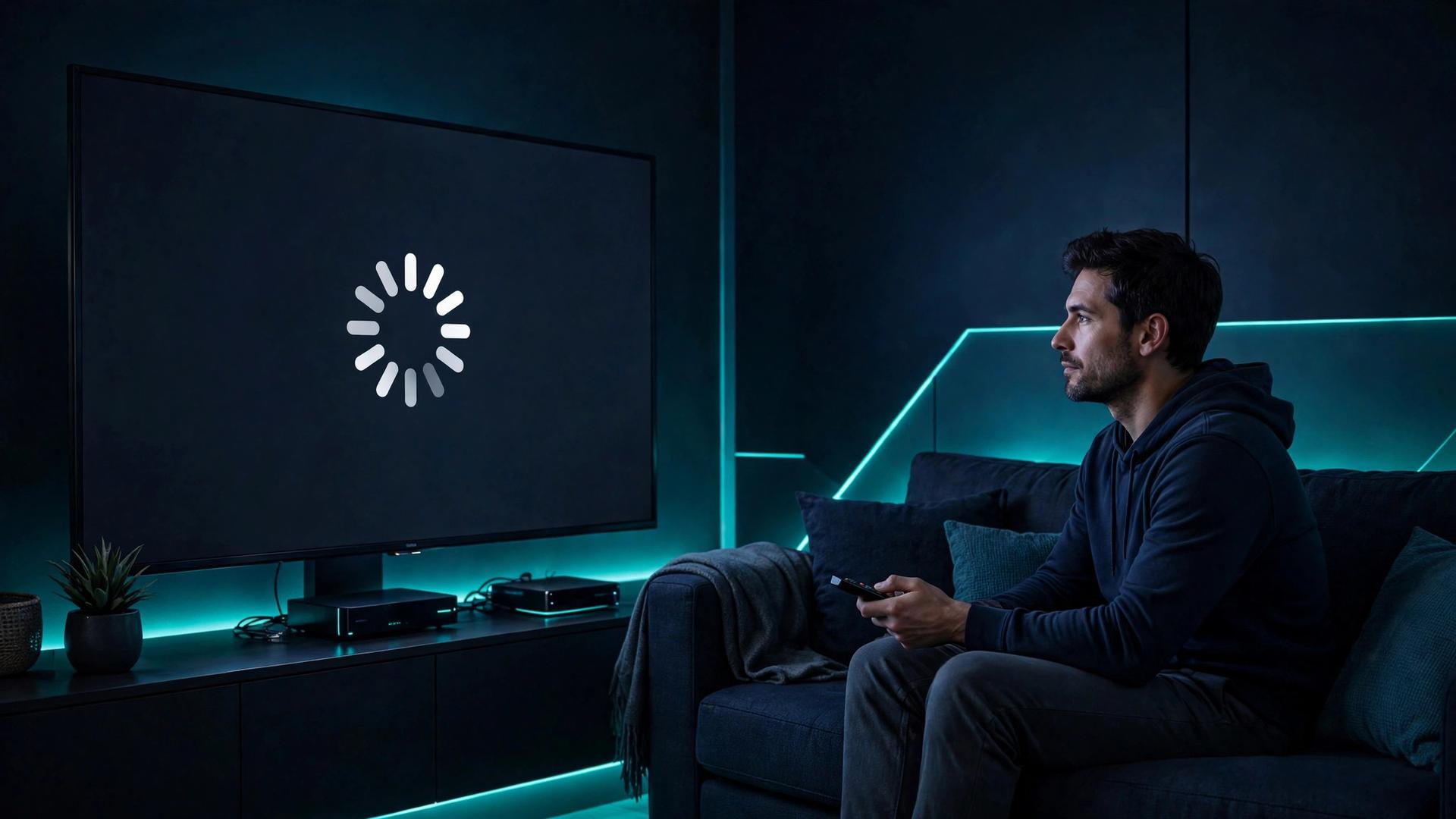
Blank screen. That is the whole job. Spinning loader. Channels that were there last night, gone. A playlist that will not load feels like the service died. And in most cases it has not. The link changed. The account expired. The player cache went stale. One character in the address is wrong. Start with the link in your activation message, compare it with the one in your player. Work down the list below. Stop the moment the channels come back.
M3U playlist not loading? Step 1: check the link is still current
Open your activation message and compare the playlist URL in your player with the one your provider sent. Simple as that. Providers rotate playlist addresses for security and server moves, and an old link simply stops responding. If support has sent a new link since you set up, replace the old one exactly, save, and restart the player. If you cannot find a newer message, ask support for your current link on WhatsApp at +212 604 034 330, because guessing at the address never works.
Step 2: check your subscription is active
An expired subscription is the next thing to check. That is it. It looks identical to a broken link: the player requests the playlist and the server refuses. Check the date your plan ends and whether you renewed. A 1-month plan at $19.99 Premium or $14.99 Basic ends exactly a month after activation. The playlist stops the same day. If the plan has expired, renewing restores the same link and the same channels immediately, with no setup to repeat. For the background, see M3U Playlist URL Explained: How It Works and Why It Changes.
Step 3: clear the player cache and reload
Players keep a local copy of your playlist to open quickly. No special tools needed. That copy can corrupt, especially after a failed update or a device crash. Open the player settings, clear the cache. Delete the playlist entry entirely, then add it again from scratch with the current link. This forces a clean download from the server and often fixes the problem. On Firestick, you can also clear the app cache from the system settings under Manage Installed Applications, which is worth doing if the in-app clear does not help.
- Compare the link in your player with the latest one from your provider.
- Confirm the subscription has not expired before changing any settings.
- Clear the cache, delete the playlist entry, and add it again fresh.
- Test one channel in a small group before assuming the whole list is dead.
- Try mobile data to rule out your home network blocking the server.
Step 4: test the network
If the link is current, the account is active and the cache is clean, the problem may be the network. Test it at peak time. Restart your router, wait a bit, and try again.
Then test the playlist on mobile data or a different Wi-Fi network: if it loads there, your home network or internet provider is blocking the server address. Keep it simple. A VPN or a router DNS change often resolves it. Also check whether other internet services work on the same device, because a device with no connection at all produces the same blank screen as a dead playlist. Xtream Codes Playlist Login Failed? Fix Guide covers that side of it in more detail.
Step 5: check the player itself
Sometimes the playlist is fine and the player is the problem. Do it once, properly. Update the player app to the latest version, because old versions can fail on newer playlist formats. If the update does not help, try the same playlist link in a second player, such as VLC on a phone or laptop: if it loads there, the original app is at fault. Reinstalling it usually fixes the issue. A playlist that loads in VLC but not in your TV app points squarely at the app, not the service.
| Symptom | Likely cause | Fix |
|---|---|---|
| Spinning loader, nothing appears | Old or expired playlist link | Replace with the current link |
| Login failed message | Expired account or wrong details | Check renewal date, re-enter details |
| Some channels load, most do not | Partial download or bad cache | Clear cache and reload fully |
| Works on mobile data, not Wi-Fi | Home network blocking server | Restart router, try a VPN |
| Loads in VLC, not in TV app | Player app fault | Update or reinstall the app |
| Guide loads, channels do not | Server stream issue | Wait a while, then contact support |
When to contact support
Contact support when you have checked the link, the account, the cache, the network and a second player. That is the point. The playlist still will not load. Send a screenshot of the exact error message, the player app name. The time the problem started. Support can check whether your account is active on the server, whether your link is current. Whether other users on the same server are affected. With M3U Playlists, WhatsApp support on +212 604 034 330 answers around the clock. Support can usually sort it with a fresh link or a resynced account. The same question comes up in How to Update M3U Playlist and EPG Automatically.
Preventing the next failure
A few habits make the next failure unlikely. Keep your activation message saved so the current link is always at hand. Refresh the playlist in your player once a week so the cache never goes stale. Renew a day before the plan ends rather than on the day it expires. Keep the player app updated, and keep a second player installed as a backup so you can test the link in seconds. With those habits, a playlist that serves 57,000+ channels will stay up for the whole term of your plan.
A playlist that will not load feels like a disaster. Work the steps in order: current link, active account, clean cache, network test, second player. The step that fixes it tells you what went wrong. The habits at the end stop it happening again. Test the whole routine during your 24-hour free trial, no card required. You will know exactly what to do if a channel list ever goes blank at the worst possible moment.